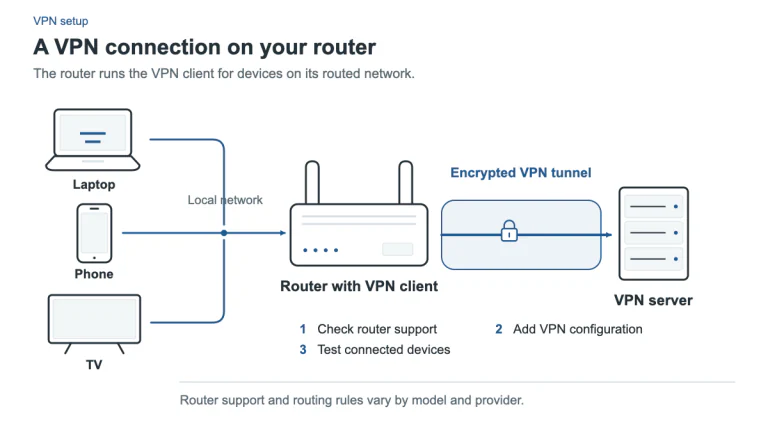
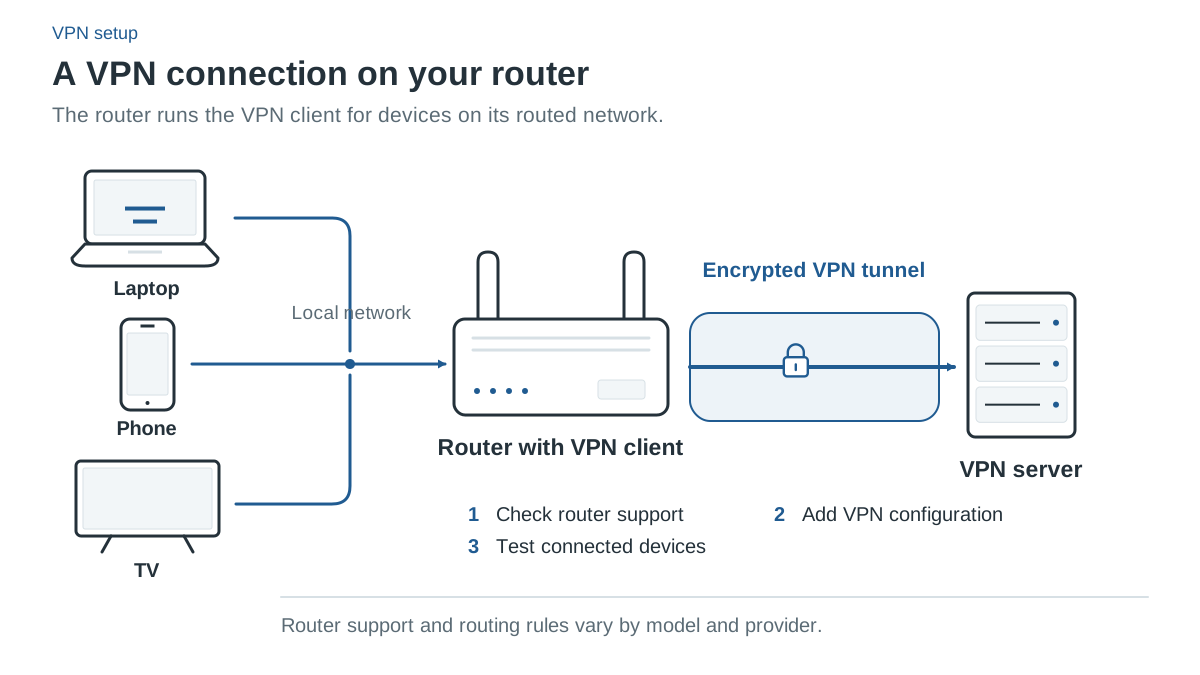
What a router VPN can cover
A compatible router can connect to a VPN provider and route selected traffic from connected devices through that tunnel. This can help with a console or another device that does not have a suitable native VPN app. The coverage depends on which networks and devices actually use the configured router route.
It does not automatically cover a phone on mobile data, a device on another network or traffic deliberately routed around the tunnel. Guest networks and per-device exceptions need checking. A diagram showing a router between your devices and the internet describes a possible setup, not proof that your own configuration covers every device.
Router-based routing also differs from desktop app routing. The router may know a connected device’s address, but it does not automatically identify each process inside that device. Do not assume it can reproduce the app-specific controls described in a provider’s Windows or Mac guide.
VPN client versus VPN server
A router’s specification may advertise a VPN server, a VPN client or both. A server feature lets other authorized devices connect into that network. A client feature lets the router connect outward to a VPN service. The first does not establish the second.
NordVPN’s current router support guide advises checking the exact model’s manual for OpenVPN client support. That illustrates why a generic “VPN supported” label is insufficient. Confirm the protocol and setup method the provider currently supports for your hardware and firmware.
Do not buy a router solely from an affiliate page’s compatibility badge. Use the manufacturer’s current manual and the provider’s specific setup guide for the exact model. Similar model names or a different regional version can have different firmware capabilities.
A compatibility checklist before buying hardware
- Find the exact router model and firmware version.
- Confirm it has a supported VPN client feature, not only a server feature.
- Match the supported protocol and configuration format with the provider’s current instructions.
- Check whether the model supports your intended per-device or network exceptions.
- Establish what happens if the tunnel drops or the router restarts.
- Confirm that you can restore the original internet settings if the setup fails.
A provider subscription and compatible client support are both needed. The existence of an OpenVPN menu does not certify performance, every cipher option or a working configuration for all VPN providers.
Features can differ from the provider’s app
Manual router setup may use separate service credentials or configuration files rather than the normal account password. Follow the provider’s current instructions and keep those credentials private. Never publish a configuration file without checking whether it contains account information.
Features such as app-level split tunneling, selected-app closure or a particular proprietary protocol may belong to the native app and not appear in a router configuration. The desktop app’s kill-switch documentation also does not establish that the router blocks traffic when its own tunnel drops.
For example, a Windows App Kill Switch that closes a program cannot simply be transferred to a router that does not control the Windows process. Router-level blocking or policy routing is a separate capability to verify in the firmware.
Connection allowance and household use
A router connection can be treated differently from individually connected native apps under a provider’s device policy. Read the current allowance rather than assuming the same counting rule for every service. NordVPN lists 10 simultaneous connections, while Surfshark and PIA list unlimited connections; neither number proves your router setup works.
Even when the allowance is generous, all connected devices still share the available home internet and router processing capacity. We have not benchmarked router throughput for these providers, so this guide does not recommend a hardware model based on an invented speed result.
Setup and verification
Keep a copy of the original configuration through the router’s normal supported backup process. Follow the official instructions for the exact model, then check ordinary non-sensitive browsing from each intended network. Identify any device that is intentionally direct.
Verify the behavior after a tunnel disconnect or reboot using the firmware’s documentation and appropriate safe checks. A changed public IP on one laptop establishes a result for that laptop at that moment, not complete coverage for every guest-network device.
Use the DNS guide to understand the limits of browser lookups and the kill-switch guide to distinguish blocking modes. If your router is incompatible, a supported native app may be a simpler solution than replacing hardware for one device.
Sources and check date
Official sources checked 12 October 2026. Provider terms, app releases and localized offers can change. Documented features are not independent test results.